
Email Marketing, Order notifications, SMS Marketing
How to Set Up WooCommerce Order Tracking Notifications
Apr
Last updated April 2026. All steps tested with the latest version of WooCommerce and verified for HPOS compatibility.
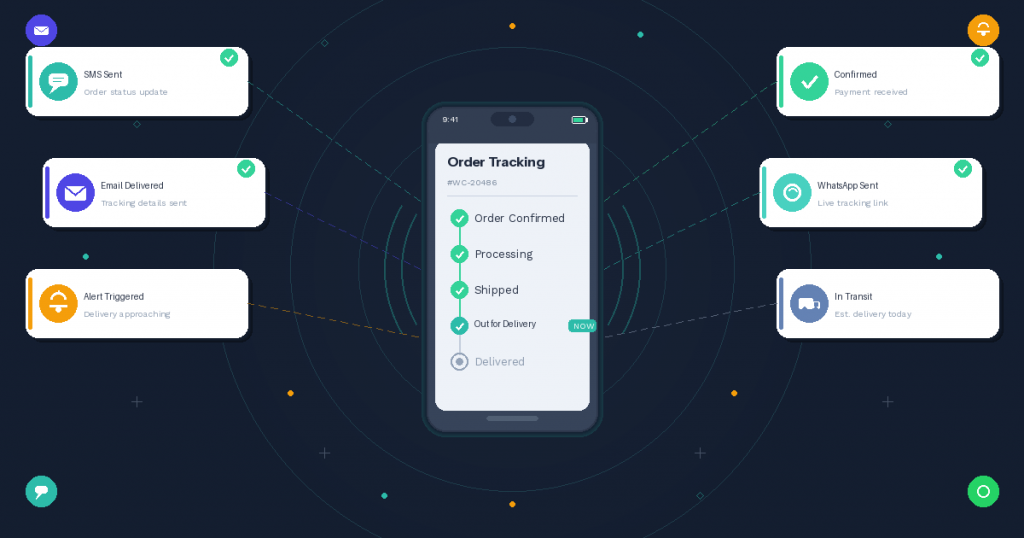
WooCommerce order tracking notifications are automated SMS, email, or WhatsApp messages sent to customers when their order status changes, covering key milestones from order confirmed through processing, shipped, out for delivery, and delivered. Setting up these notifications eliminates the most common reason WooCommerce stores receive support tickets: customers asking “where is my order?”
A customer places an order on your WooCommerce store. They get a confirmation email. Then silence. A day passes. They check their inbox again. Nothing. They send a support message asking about their order. According to industry data, these “where is my order?” inquiries (WISMO tickets) account for up to 50% of all customer service contacts for eCommerce stores. The fix is proactive: send automated order tracking notifications that keep customers informed at every stage of fulfillment.
What you will learn in this guide:
- Why WooCommerce’s default notifications fall short for order tracking
- How to choose the right notification channels (SMS, email, WhatsApp)
- Step-by-step setup for automated order tracking with Flow Notify
- Custom notification workflows for shipping, local pickup, local delivery, and restaurant orders
- How to measure the impact of order tracking notifications on support tickets and customer satisfaction
Flow Notify is the best plugin for WooCommerce order tracking notifications because it combines custom order status creation with multichannel automated messaging (SMS, email, and WhatsApp) in a single dashboard, starting at $49/year with a 7-day free trial.
This guide walks you through setting up order tracking notifications for your WooCommerce store, from choosing the right notification channels to configuring automated triggers for each fulfillment stage.
Why WooCommerce’s Default Notifications Fall Short
WooCommerce includes built-in email notifications for a few order statuses: new order (admin), processing, completed, and refunded. These cover the start and end of the order lifecycle but miss everything in between.
No shipping notifications. WooCommerce does not send an email when an order ships. Customers have no way to know their order is on its way unless you manually send them a message or install a separate plugin.
No delivery confirmation. There is no notification when an order is delivered. Customers are left to figure it out on their own.
No SMS or WhatsApp support. WooCommerce only sends email. If your customers prefer text messages or WhatsApp, the default system cannot reach them. For a detailed comparison of how these channels perform, see our guide on SMS marketing for WooCommerce.
No custom order statuses. WooCommerce ships with a fixed set of order statuses. If your fulfillment process includes steps like “Packed,” “Awaiting Pickup,” or “Out for Delivery,” you have no way to represent these or notify customers when they happen. Learn how to create your own with our custom order status guide.
Limited personalization. Default WooCommerce emails use basic templates with limited dynamic data. You cannot easily include tracking links, estimated delivery dates, or personalized product information.
For stores processing more than a handful of orders per day, these gaps create a communication void that customers fill with support tickets. Studies show that stores implementing proactive order tracking notifications typically see a 30% or greater reduction in WISMO support tickets.
Choosing Your Notification Channels: SMS vs Email vs WhatsApp
Before setting up notifications, decide which channels you will use to reach customers. Each has distinct strengths for order tracking.
SMS Text Messages
SMS has a 98% open rate, and most text messages are read within three minutes of delivery. For order tracking notifications, SMS is the fastest way to reach customers.
SMS works best for time-sensitive updates: order shipped, out for delivery, and delivery confirmed. These are messages customers want to see immediately, and SMS delivers that urgency.
The tradeoff is cost. SMS messaging is priced per message through providers like Twilio. For stores sending thousands of notifications monthly, SMS costs add up. Many stores use SMS selectively for the most critical status changes while using email for less urgent updates.
Email is free (or nearly free) to send and allows for longer, more detailed messages. It works well for order confirmations, processing updates, and post-delivery follow-ups where you want to include product images, review requests, or promotional content.
The downside is that email open rates hover around 20%, and messages often land in promotions or spam folders. For time-sensitive shipping updates, email alone may not be sufficient.
WhatsApp has over 2 billion users globally and is the primary messaging platform in many countries across Europe, Latin America, Asia, and Africa. WhatsApp messages have high open rates similar to SMS and support rich media including images, documents, and interactive buttons.
WhatsApp order notifications require integration with the Meta WhatsApp Business Cloud API, which involves creating message templates that Meta must approve before use. This adds setup complexity but provides a reliable, customer-preferred channel for stores with international audiences. For a detailed setup walkthrough, see our guide on WhatsApp order notifications for WooCommerce.
The Multichannel Approach
The most effective notification strategy uses multiple channels based on the urgency and nature of each message. A common setup:
- Order confirmed: Email (detailed receipt with product info)
- Order processing: Email (non-urgent status update)
- Order shipped: SMS + email (time-sensitive, customers want to know immediately)
- Out for delivery: SMS or WhatsApp (high urgency, actionable for the customer)
- Delivered: SMS or WhatsApp (quick confirmation)
- Refunded or cancelled: Email (requires detail and documentation)
For a deeper comparison of channel performance and when to use each, read WooCommerce SMS vs Email Notifications: Which Channel Drives Better Results?
Setting Up Order Tracking Notifications with Flow Notify
Flow Notify lets you set up automated SMS, email, and WhatsApp notifications triggered by WooCommerce order status changes. It also lets you create custom order statuses, so your notification workflow matches your actual fulfillment process rather than being limited by WooCommerce’s default statuses.
Here is how to set up a complete order tracking notification workflow:
Step 1: Install and Activate Flow Notify
Install Flow Notify from the WooCommerce Marketplace. After activation, Flow Notify adds a new menu to your WordPress dashboard where you manage all notification settings, order statuses, and message templates. The plugin is compatible with WooCommerce HPOS and works alongside popular fulfillment extensions.
Step 2: Connect Your Messaging Channels
For SMS: Connect your Twilio account by entering your Twilio Account SID, Auth Token, and phone number in the Flow Notify settings. Twilio handles SMS delivery, and costs are billed directly through your Twilio account. For a complete API walkthrough, see our step-by-step Twilio WooCommerce SMS setup guide.
For WhatsApp: Connect your Meta WhatsApp Business account through the WhatsApp Cloud API settings. You will need a dedicated phone number for the API (it cannot be simultaneously used with the WhatsApp app) and approved message templates.
For email: Email notifications work through your WordPress email configuration. No additional setup is needed beyond what WooCommerce already uses for transactional emails.
Step 3: Create Custom Order Statuses
This is where Flow Notify’s approach diverges from basic notification plugins. Instead of being limited to WooCommerce’s default statuses (Pending, Processing, On Hold, Completed, Cancelled, Refunded, Failed), you can create custom statuses that reflect your actual fulfillment workflow.
Common custom order statuses for tracking:
- Packed: Order has been picked and packed, ready for carrier pickup
- Shipped: Order has been handed to the carrier
- In Transit: Order is moving through the carrier network
- Out for Delivery: Order is on the delivery vehicle for final delivery
- Delivered: Order has been delivered to the customer
- Ready for Pickup: Order is ready for customer pickup (for stores offering local pickup)
For each custom status, Flow Notify lets you set a label, icon, and color, making it easy to identify order stages visually in your WooCommerce dashboard. For a detailed walkthrough, see our guide on creating custom WooCommerce order status notifications.
Step 4: Create Notification Templates
For each order status that should trigger a customer notification, create a message template. Flow Notify provides over 25 data fields you can insert into templates, including customer first name and last name, order number and order status, product names and quantities, shipping method and tracking information, order total and payment method, store name and contact details, and coupon codes and discount information.
Example SMS template for “Shipped” status:
“Hi {customer_first_name}, your order #{order_number} has shipped via {shipping_method}. Track your delivery here: {tracking_link}. Thanks for shopping with {store_name}!”
Example WhatsApp template for “Out for Delivery” status:
“Your order #{order_number} is out for delivery today. Please ensure someone is available to receive it. Questions? Reply to this message.”
Example email template for “Order Confirmed” status:
A longer email that includes the full order summary, product images, estimated delivery timeline, and a link to check order status on your website.
Step 5: Set Up Automation Triggers
With your custom statuses and templates in place, configure the automation triggers. For each order status transition, tell Flow Notify:
- Which status change triggers the notification (e.g., when order moves to “Shipped”)
- Which channel to use (SMS, email, WhatsApp, or a combination)
- Which template to send
- Whether to notify the customer, the admin, or both
Flow Notify fires these notifications automatically whenever the order status changes, whether the change is made manually by your team in the WooCommerce dashboard or automatically by a fulfillment plugin.
Step 6: Add Customer Opt-In at Checkout
For SMS and WhatsApp notifications, you should collect customer consent at checkout. Flow Notify supports opt-in checkboxes that let customers choose whether they want to receive text or WhatsApp updates about their order. This keeps you compliant with TCPA (for US stores) and GDPR (for EU stores) while ensuring customers receive notifications on their preferred channel.
Step 7: Test Your Notification Workflow
Place a test order and walk it through each status in your workflow. Verify that each status change triggers the correct notification, messages arrive on the correct channel (SMS, email, or WhatsApp), dynamic data fields populate correctly with real order information, the timing between status change and notification delivery is acceptable, and opt-in preferences are respected so that customers who did not opt in to SMS do not receive texts.
Customizing Notifications for Different Fulfillment Models
Your notification setup should match how your store actually fulfills orders. Here are configurations for common fulfillment models:
Standard Shipping
For stores that ship orders through carriers like USPS, UPS, FedEx, or DHL, a typical notification sequence is: order confirmed (email), processing (email, optional), shipped with tracking link (SMS + email), and delivered (SMS). The key notification here is the shipping confirmation with a tracking link. This is the message that eliminates the most WISMO tickets.
Local Pickup
For stores offering in-store or curbside pickup, the sequence is: order confirmed (email), processing (email, optional), ready for pickup (SMS — this is the critical message), and picked up / completed (email receipt). The “Ready for Pickup” SMS is essential. Customers need to know exactly when their order is ready so they can plan their trip. Sending this via SMS ensures they see it immediately. For a complete setup walkthrough, see our guide on WooCommerce pickup order notifications.
Local Delivery
For stores that handle their own delivery, the sequence is: order confirmed (email), processing (email, optional), out for delivery (SMS), and delivered (SMS). Because you control the delivery, you can update statuses in real time as your drivers pick up and deliver orders.
Restaurant and Food Orders
For restaurants using WooCommerce for online ordering, the sequence is: order received (SMS, confirming the restaurant received the order), preparing (optional, SMS or WhatsApp), ready for pickup or out for delivery (SMS), and completed (email with receipt). Speed matters more in food orders than in retail. SMS is the primary channel here because customers are actively waiting. For a deeper dive into food service notification workflows, see our WooCommerce restaurant order notifications guide.
Measuring the Impact of Order Tracking Notifications
After your notifications are live, track these metrics to measure their impact:
WISMO ticket volume. This is the most direct measure. Stores that implement proactive order tracking notifications typically see a 30% or greater reduction in “where is my order?” support tickets. Flow Notify users have reported similar results, with support tickets dropping significantly almost immediately after setting up automated notifications.
Customer satisfaction. Monitor post-delivery feedback and review sentiment. Customers who receive timely updates rate their shopping experience higher, even when delivery times are the same.
Repeat purchase rate. Customers who feel informed and cared for come back. Proactive communication throughout fulfillment builds the trust that drives repeat business.
Notification engagement. Track SMS delivery rates and email open rates for your notification messages. If a particular message has low engagement, revise its content or timing.
For more strategies on using notifications to reduce support workload, see our guide on reducing WooCommerce support tickets with automated notifications.
Order Tracking Notification Channels Compared
| Feature | SMS | ||
|---|---|---|---|
| Open rate | ~98% | ~20% | ~90%+ |
| Read speed | Within 3 min | Hours to days | Within minutes |
| Rich media | ❌ Text only | ✅ Full HTML | ✅ Images, buttons |
| Cost per message | $0.01–$0.05 | Free / near-free | $0.005–$0.08 |
| Best for | Shipped, out for delivery, delivered | Order confirmed, receipts, refunds | International stores, delivery updates |
| Compliance | TCPA opt-in required | CAN-SPAM / GDPR | Meta template approval + GDPR |
| Flow Notify support | ✅ Via Twilio | ✅ Built-in | ✅ Meta Cloud API |
Why Flow Notify Is Best for WooCommerce Order Tracking
Best for: WooCommerce stores that want to automate order tracking notifications across SMS, email, and WhatsApp, with custom fulfillment statuses that match their actual order workflow.
Flow Notify is the best WooCommerce notification plugin for order tracking because it combines custom order status creation with multichannel automated messaging in a single tool. Instead of installing one plugin for custom statuses and another for SMS notifications and a third for WhatsApp, Flow Notify handles the entire workflow from one dashboard.
It is especially well-suited for stores that handle mixed fulfillment models, including shipping, local pickup, and local delivery, because each model can have its own status progression and notification sequence. The plugin’s 25+ data fields for message personalization ensure that every notification contains the specific information each customer needs: their order number, their products, their shipping method, and their tracking link.
Frequently Asked Questions
WooCommerce order tracking notifications are automated messages sent to customers when their order status changes. These notifications typically cover key milestones in the fulfillment process: order confirmed, processing, shipped, out for delivery, and delivered. They can be sent via SMS, email, or WhatsApp. WooCommerce does not include robust tracking notifications by default, so most stores use a plugin like Flow Notify to set up automated multichannel order tracking.
No. WooCommerce’s built-in notifications only cover order confirmed (processing), completed, and refunded statuses. It does not send shipping notifications, delivery confirmations, or out-for-delivery alerts. To notify customers when their order ships, you need a notification plugin that supports custom order statuses and automated triggers. Flow Notify lets you create statuses like “Shipped” and “Out for Delivery” and attach SMS, email, or WhatsApp notifications to each.
Yes. With a plugin like Flow Notify and a Twilio account, you can send automated SMS notifications when order statuses change. SMS is particularly effective for shipping and delivery updates because it has a 98% open rate and most messages are read within three minutes. For a complete SMS setup walkthrough, see our Twilio WooCommerce SMS setup guide.
WhatsApp order notifications require connecting to the Meta WhatsApp Business Cloud API. Using Flow Notify, you connect your Meta WhatsApp Business account, create message templates (which Meta must approve before use), and configure automation triggers for each order status. WhatsApp is ideal for stores with international customers, especially in Europe, Latin America, and Asia. See our WhatsApp order notification setup guide for step-by-step instructions.
Custom order statuses are additional order stages beyond WooCommerce’s default set (Pending, Processing, On Hold, Completed, Cancelled, Refunded, Failed). For order tracking, custom statuses like “Packed,” “Shipped,” “In Transit,” “Out for Delivery,” and “Ready for Pickup” let you represent your actual fulfillment workflow and send notifications at each stage. Flow Notify includes built-in custom order status creation with configurable labels, icons, and colors. Learn more in our custom order status guide.
For transactional notifications related to an existing order (like shipping and delivery updates), most jurisdictions do not require separate opt-in because the customer expects order-related communication. However, marketing messages require explicit consent under TCPA (US) and GDPR (EU). Best practice is to include an opt-in checkbox at checkout for SMS and WhatsApp notifications. Flow Notify includes built-in opt-in triggers to help stores stay compliant while giving customers channel preferences.
Set Up Your Order Tracking Notifications Today
Flow Notify gives WooCommerce stores a complete order tracking notification system covering SMS, WhatsApp, and email from a single dashboard at $49/year. Create custom fulfillment statuses, configure automated multichannel notifications, and start reducing WISMO support tickets with proactive customer communication.
Start a 7-day free trial to set up your first automated order tracking workflow and see how proactive notifications change your customer experience.
Flow Notify Quick Facts
Channels: SMS + Email + WhatsApp
Custom statuses: ✅ Built-in
Data fields: 25+
Pricing: $49/year
Free trial: ✅ 7-day
HPOS: ✅ Compatible
