
How-to Guides, WooCommerce Notifications
How to Set Up WooCommerce Delivery Notifications That Customers Actually Read
Apr
Last updated April 2026. All steps tested with the latest version of WooCommerce and verified for HPOS compatibility.
The window between “order shipped” and “package delivered” generates more customer anxiety — and more support tickets — than any other phase of the buying journey. Industry data shows that “Where Is My Order?” (WISMO) inquiries account for up to 50% of all customer service contacts for eCommerce stores, and most of those questions come during the last-mile delivery window. If your WooCommerce store is not sending proactive delivery notifications, your support team is absorbing that cost every single day.
A WooCommerce delivery notification system solves this by automatically alerting customers at key delivery milestones — when their order ships, when it is out for delivery, and when it arrives. The result is fewer support tickets, higher customer satisfaction, and a post-purchase experience that builds loyalty instead of frustration. This guide walks you through setting up delivery notifications via SMS, email, and WhatsApp, step by step.
Why WooCommerce Delivery Notifications Matter for Your Store
Delivery notifications are not just a convenience — they are a measurable business advantage. According to shipping industry research, 56% of online shoppers say real-time delivery tracking and notifications are a key factor when choosing where to shop. Stores that proactively communicate during the delivery window see measurable improvements across several metrics.
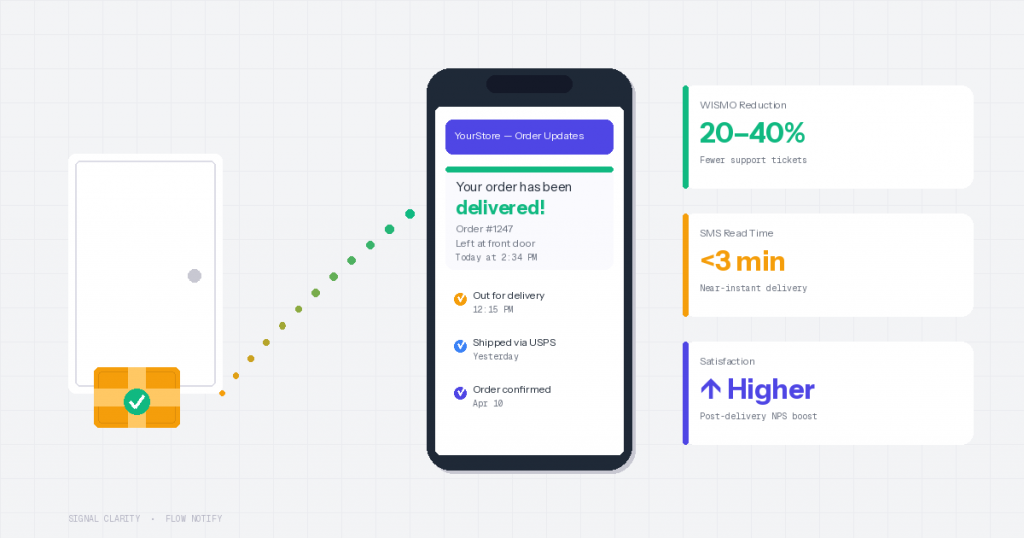
First, support volume drops significantly. When customers receive automated “out for delivery” and “delivered” messages, they do not need to email or call your team asking for updates. Stores that implement automated shipping and delivery notifications typically report a 20–40% reduction in WISMO-related support tickets.
Second, customer satisfaction peaks at the delivery moment. The instant a customer receives their package is the highest-engagement touchpoint in the entire post-purchase experience. A well-timed delivery confirmation with a review request or a discount code for their next order converts at significantly higher rates than the same message sent days later.
Third, delivery notifications reduce fraud disputes. When you can prove a customer was notified of delivery — especially via SMS with near-instant read rates — it becomes much harder for bad actors to claim they never received a package.
Delivery Confirmation SMS: Getting the Channel Right
Email has been the default WooCommerce notification channel for years, but for delivery updates specifically, SMS dramatically outperforms email. Delivery notifications are inherently time-sensitive — the customer wants to know their package arrived now, not when they check their inbox tonight.
SMS delivery notifications achieve 90–98% open rates compared to 20–28% for email, and 90% of text messages are read within three minutes. For a “your package has been delivered” notification, that speed difference is the gap between a customer retrieving their package promptly and it sitting on their porch for hours, exposed to weather or theft.
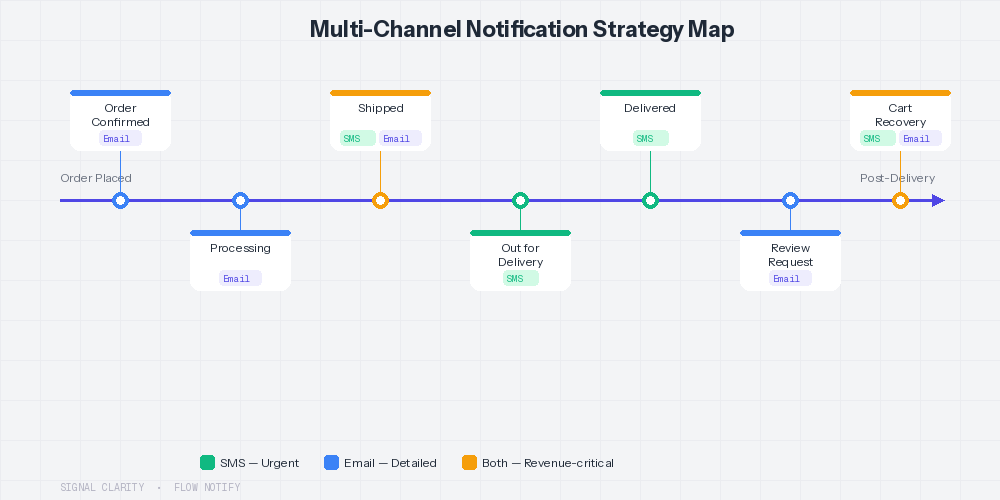
That said, email still plays an important role in the delivery notification workflow. Email is ideal for detailed shipping confirmation messages that include full order summaries, tracking links, and estimated delivery windows. The best approach is to pair a detailed shipping email with short, real-time SMS alerts for out-for-delivery and delivered milestones.
For stores with international customers, WhatsApp is an increasingly important delivery channel. WhatsApp combines the immediacy of SMS with rich media support — you can include images, tracking buttons, and formatted text in your delivery updates, making it particularly effective in regions where WhatsApp is the primary messaging platform.
Step-by-Step: Setting Up WooCommerce Delivery Notifications with FlowNotify
Best for: WooCommerce merchants who want to send delivery confirmation SMS, out-for-delivery alerts, and last-mile updates via SMS, WhatsApp, and email — all managed from one dashboard.
FlowNotify makes delivery notification setup straightforward because it handles SMS, WhatsApp, and email from a single WooCommerce dashboard. Here is how to set it up:
Step 1: Install and activate FlowNotify. Download FlowNotify from the WooCommerce marketplace or from flownotify.com/. Install and activate the plugin in your WordPress admin under Plugins → Add New → Upload Plugin. FlowNotify is fully compatible with WooCommerce HPOS.
Step 2: Connect your messaging providers. Navigate to FlowNotify → Settings in your WooCommerce admin. For SMS, enter your Twilio Account SID, Auth Token, and sending phone number. For WhatsApp, connect your Meta WhatsApp Cloud API credentials. Email notifications use your existing WordPress email configuration — no additional setup required.
Step 3: Create custom delivery order statuses. One of FlowNotify’s most powerful features for delivery notifications is the ability to create custom WooCommerce order statuses. Navigate to FlowNotify → Order Statuses and create statuses that match your delivery workflow. Common examples include “Shipped,” “Out for Delivery,” “Delivered,” and “Delivery Exception.” Each status gets a custom label, icon, and color for easy identification in your order management dashboard.
Step 4: Build your delivery notification triggers. Go to FlowNotify → Notifications and create a new notification for each delivery milestone. For each notification, you will configure:
- Trigger: Select the order status change that fires this notification (e.g., status changes to “Out for Delivery”)
- Channel: Choose SMS, WhatsApp, email, or multiple channels
- Recipient: Customer, admin, or both
- Message template: Write your notification text using FlowNotify’s 25+ data field variables for personalization
Step 5: Personalize your delivery messages. Use FlowNotify’s data fields to create messages that feel personal and include all the information a customer needs. A strong delivery SMS template might look like this:
Hi {customer_first_name}, your order #{order_number} has been delivered! We hope you love your {product_names}. Questions? Reply to this text or visit {store_url}/support.
FlowNotify supports variables for customer name, order number, order total, product names, tracking numbers, shipping address, custom order status labels, and more — over 25 data fields in total.
Step 6: Test your notifications. Before going live, place a test order and manually advance it through each delivery status to verify that notifications fire correctly on each channel. Check that personalization variables populate properly and that the message reads well on a mobile device.
Out-for-Delivery Alerts: The Most Underused WooCommerce Notification
Most WooCommerce stores send shipping confirmations and (sometimes) delivery confirmations, but very few send out-for-delivery alerts — the notification that tells a customer their package will arrive today. This is a significant missed opportunity.
Out-for-delivery alerts serve two important functions. First, they reduce missed deliveries by giving customers a heads-up that they need to be available or make arrangements. A customer who knows their package is arriving today can ask a neighbor to watch for it, leave instructions for the carrier, or adjust their schedule to be home.
Second, out-for-delivery alerts generate anticipation and excitement. The “your order arrives today” message has some of the highest engagement rates of any post-purchase notification because the customer is actively looking forward to receiving their item. This is an excellent touchpoint to include a subtle CTA — a request to share their unboxing on social media, a referral code, or a preview of related products.
With FlowNotify, setting up an out-for-delivery alert is as simple as creating a custom “Out for Delivery” order status and attaching an SMS notification trigger. If you use a shipping integration that automatically updates order status based on carrier tracking, this entire flow can run without any manual intervention.
Last-Mile Delivery Updates: Handling Exceptions and Delays
Not every delivery goes smoothly. Packages get delayed by weather, carriers miss delivery windows, and customers enter incorrect addresses. How your store communicates during delivery exceptions can be the difference between a frustrated customer and a loyal one.
The best practice for delivery exceptions is to send an SMS or WhatsApp alert the moment an issue is detected. The message should clearly explain what happened, what the customer can expect next, and what action (if any) they need to take. Vague messages like “there has been an update to your delivery” create more anxiety than they resolve.
Here is a framework for delivery exception notifications:
| Exception Type | Channel | Message Should Include |
|---|---|---|
| Delivery Delayed | SMS | New estimated delivery date, reason if available, support link |
| Failed Delivery Attempt | SMS + Email | What happened, next attempt date, option to reschedule or redirect |
| Address Issue | SMS | Request to confirm or update address, support contact |
| Returned to Sender | Email + SMS | Why it was returned, options for reshipping, refund policy |
In FlowNotify, you can create custom order statuses for each exception type — “Delivery Delayed,” “Delivery Failed,” “Address Verification Needed” — and attach specific notification templates to each. This turns reactive customer support into proactive communication that builds trust.
Integrating Delivery Notifications with Shipment Tracking
The most effective WooCommerce delivery notification setup integrates with your carrier tracking data so that status updates trigger automatically. There are two approaches to this integration.
The first approach uses a WooCommerce shipment tracking plugin — such as Advanced Shipment Tracking, TrackShip, or the WooCommerce Shipment Tracking extension — to pull carrier status updates into your WooCommerce order statuses. When the tracking data shows “out for delivery,” the order status updates automatically, which then triggers your FlowNotify notification. This creates a fully automated delivery notification pipeline with zero manual effort.
The second approach is manual status updates, where you or your fulfillment team change the order status in WooCommerce as packages move through the delivery process. This works well for stores with smaller order volumes or those using local delivery and pickup where carrier tracking is not available. FlowNotify supports both approaches — notifications fire the same way regardless of whether the status change is triggered by an integration or by a manual update.
For stores that use local delivery or local pickup, FlowNotify’s compatibility with WooCommerce local delivery and local pickup plugins means you can send “your order is on its way” or “your order is ready for pickup” notifications directly from the same system that handles your shipped-order delivery alerts.
Measuring the Impact of Your Delivery Notifications
After setting up delivery notifications, track these metrics to measure their impact on your business:
WISMO ticket volume. Compare the number of “where is my order” support tickets before and after implementing automated delivery notifications. Most stores see a 20–40% reduction within the first month.
Delivery notification open and click rates. If you are using SMS through FlowNotify’s Twilio integration, you can track delivery rates and engagement. Compare SMS vs email performance for your specific customer base to optimize your channel mix over time.
Post-delivery conversion. If your delivery confirmation includes a review request, a referral code, or a next-purchase discount, measure the conversion rate of that CTA. The delivery moment is your highest-engagement touchpoint — make the most of it.
Customer satisfaction scores. If you collect NPS or CSAT data, segment it by customers who received delivery notifications vs those who did not. The correlation is typically strong and positive.
For a broader look at choosing between SMS and email for different notification types, see our guide on WooCommerce SMS vs Email Notifications.
Start Sending Delivery Notifications Your Customers Will Actually Read
Your customers should never have to wonder where their order is. With FlowNotify, you can set up automated delivery notifications across SMS, WhatsApp, and email in minutes — with custom order statuses for every delivery milestone, 25+ personalization fields, and triggers that fire automatically as orders move through your fulfillment pipeline.
Start your 7-day free trial today, with pricing from just $7.42/month (billed annually at $89/year). Reduce your support tickets, delight your customers, and turn the delivery moment into a growth opportunity for your WooCommerce store.
For more on building a complete notification strategy, check out our Best WooCommerce Notification Plugins Compared (2026) guide and our article on How to Set Up WooCommerce Order Tracking Notifications.
